
Bulk data entry in Google Sheets is the kind of work that kills entire afternoons. Whether you’re enriching a lead list, logging invoice details, or categorizing hundreds of form responses, the copy-paste cycle is a productivity drain most teams accept as unavoidable. It doesn’t have to be. This guide shows you exactly how to connect ChatGPT to Google Sheets for bulk data entry so you can automate entire columns of work, using three distinct methods that, in most cases, don’t require a dedicated developer, though Google Apps Script will need some coding knowledge for production-grade workflows.
Purpose-built platforms like Aibuble have extended this concept with out-of-the-box AI workflows for business teams, but if your workflow lives in Sheets and you need ChatGPT specifically, this tutorial walks you through every option from quickest to most powerful. You’ll finish with a working setup, a reusable prompt template, and a clear sense of which approach fits your volume and technical comfort level.
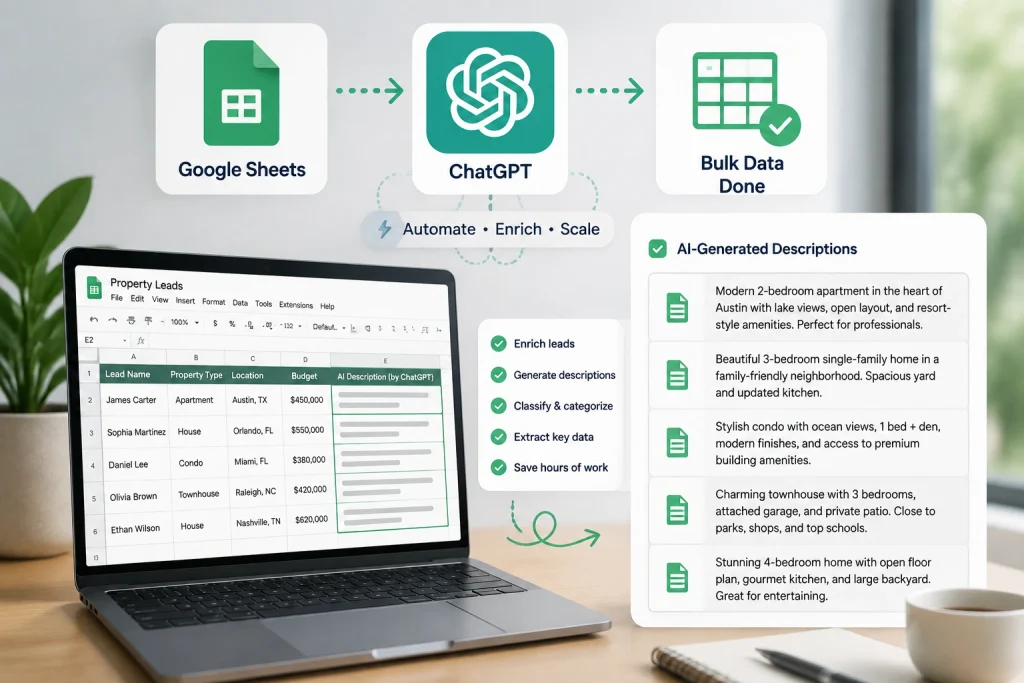
How to Connect ChatGPT to Google Sheets for Bulk Data Entry: Choose a Method First
Not all three methods work the same way, and starting with the wrong one wastes setup time. The key variables are your data volume, how often new rows arrive, and how much maintenance overhead you’re willing to accept long-term.
The GPT for Sheets add-on: best for quick column fills
The GPT for Sheets and Docs add-on is the lowest-friction entry point available. It requires no API plumbing beyond pasting a key, and it’s ideal for one-off column enrichments or teams that live entirely inside Google Workspace. The trade-off is worth noting: it processes cells individually, which can be noticeably slower than batch methods for larger datasets. For a quick enrichment job on a small list, it gets you moving in under ten minutes.
Zapier or Make: best for trigger-based, event-driven automation
This approach fits when new rows arrive continuously, think form submissions, CRM exports, or inbound leads. The automation fires per row trigger rather than in batch, so it handles ongoing pipelines well. It’s not the right tool for processing a static 5,000-row spreadsheet in one shot, because each row is its own trigger event and the throughput reflects that.
Google Apps Script: best for full batch control
Apps Script is the most capable option for bulk processing at scale. It runs a loop across all rows in a single execution, handles rate limits in code, and the only cost you pay is the OpenAI API charges, no third-party tool subscription fees. If you’re processing thousands of rows and want full control over timing, error handling, and output format, this is the right path.
Setting up the GPT for Sheets add-on step by step
If you chose the add-on path, the install takes about five minutes. Open a Google Sheet, go to Extensions → Add-ons → Get add-ons, search for “GPT for Sheets and Docs,” and click Install. You’ll choose your Google account, approve the requested permissions, and the add-on appears in your Extensions menu. The permissions are scoped to documents you open the add-on in, not your entire Drive, so the access footprint is minimal.
Installing the add-on and entering your OpenAI API key
After installation, go to Extensions → GPT for Sheets and Docs → Set API Key. Paste your OpenAI key from platform.openai.com and save it. The add-on also supports running on GPT for Work credits if you prefer not to connect your own key, but bringing your own key gives you access to a wider range of models and keeps billing transparent.
Connect ChatGPT to Sheets for Bulk Data Entry: Running your first bulk GPT formula
The basic formula syntax is =GPT("your prompt here", A2). A concrete example: if column A contains 50 company names and you want one-sentence descriptions in column B, enter =GPT("Write a one-sentence description of this company:", A2) in cell B2, then drag the formula down the column. Use “Enable GPT functions” from the add-on menu to trigger the batch run. Because the add-on processes cells individually rather than in parallel, run a small test first and check actual timing before scaling to a full column, results will vary based on prompt length and API response times.
Building a Zapier or Make workflow to push rows through ChatGPT
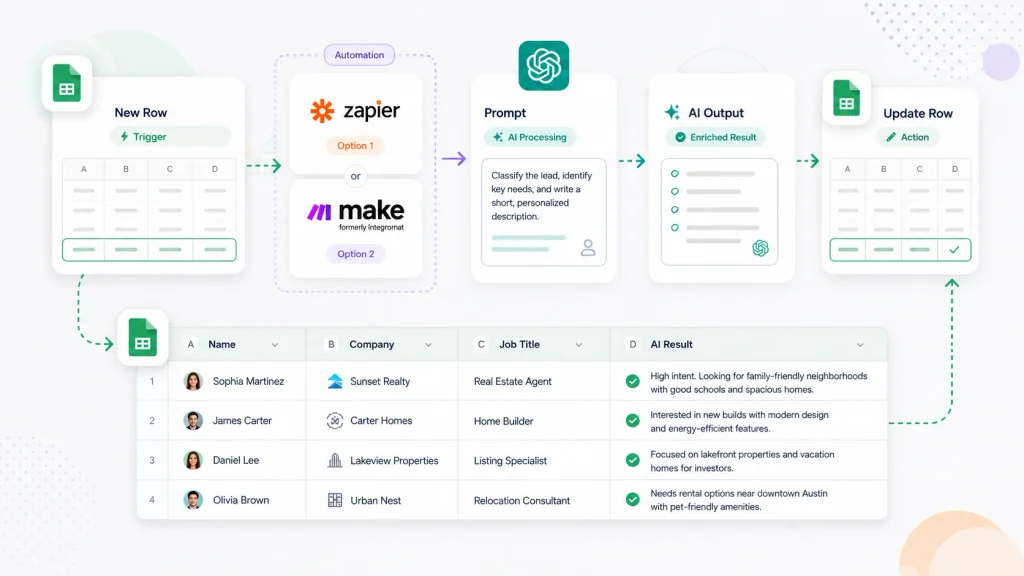
For an always-on pipeline that reacts to new data rather than processing a fixed file, Zapier or Make gives you a clean no-code path. The basic architecture is three steps: a Google Sheets trigger, a ChatGPT action, and a write-back to the sheet.
Setting up the trigger and the ChatGPT action step
Create a new Zap and select Google Sheets as the trigger app. Choose “New Spreadsheet Row” or “New or Updated Row,” then connect your account and select the target spreadsheet and worksheet tab. Add an OpenAI action step and select “Send Prompt.” Build your prompt using the mapped field values from the trigger, for example: “Classify this lead’s industry based on their job title: {{job_title}}.” Make follows the exact same logic but calls these modules instead of actions, so the mental model transfers directly.
Writing results back to your sheet and what to expect for throughput
Add a second Google Sheets action after the ChatGPT step: “Update Spreadsheet Row.” Map the ChatGPT output to your target column and map the row ID so Zapier knows which row to update. Zapier processes one row per trigger event, that’s ideal for moderate daily volume in the dozens to low hundreds, but it’s not suited for processing a static bulk file of thousands of rows at once. For that kind of job, Apps Script gives you the control you need.
Using Google Apps Script to Connect ChatGPT to Sheets for Bulk API Calls
Apps Script is the most powerful option here, and it’s more approachable than it looks. The script reads your input column into an array, loops through each row calling the OpenAI API, collects all the outputs, and writes them back to the sheet in a single batch at the end. That final write in one setValues() call rather than row-by-row is intentional: it’s significantly faster and avoids hammering the Sheets API with repeated write operations.
The core script: looping through rows and calling the OpenAI API
The script authenticates using your API key stored as a script property, reads all values from the input column, and loops through the array. Each iteration calls UrlFetchApp.fetch() against https://api.openai.com/v1/chat/completions, parses choices[0].message.content from the JSON response, and pushes the result into an output array. Once the loop finishes, the full output array gets written back to the sheet in one operation. Always store your API key in Script Properties rather than hardcoding it in the script itself. Here’s a minimal working pattern:
<code>function runBulkGPT() {
  var sheet = SpreadsheetApp.getActiveSheet();
  var inputs = sheet.getRange("A2:A51").getValues();
  var apiKey = PropertiesService.getScriptProperties().getProperty("OPENAI_KEY");
  var outputs = [];

  for (var i = 0; i < inputs.length; i++) {
    var payload = {
      model: "gpt-4o-mini",
      messages: [{ role: "user", content: "Describe this company in one sentence: " + inputs[i][0] }]
    };
    var response = UrlFetchApp.fetch("https://api.openai.com/v1/chat/completions", {
      method: "post",
      contentType: "application/json",
      headers: { Authorization: "Bearer " + apiKey },
      payload: JSON.stringify(payload)
    });
    var result = JSON.parse(response.getContentText());
    outputs.push([result.choices[0].message.content]);
    Utilities.sleep(1500);
  }
  sheet.getRange("B2:B51").setValues(outputs);
}</code>
Adding delays and batching logic to stay inside rate limits
Firing thousands of requests with no pause triggers 429 rate-limit errors from the OpenAI API. Adding Utilities.sleep(1500) between requests, as shown in the example above, introduces a 1.5-second delay per call (approximately 0.67 requests per second), which provides a reasonable baseline buffer for most tier levels. For very large datasets over 5,000 rows, group rows into batches of 10 to 20 and add a longer pause between batches, with a small random jitter added to the delay so concurrent executions don’t retry at the same moment. Tune the delay based on your specific rate limits and monitor the Retry-After header for exponential backoff signals. For non-urgent bulk jobs, the OpenAI Batch API is worth considering: it uses a separate rate-limit pool, supports up to 50,000 requests per file, and can cut costs significantly on eligible models.
Prompt templates and real-world use cases to get you started
The integration is only as useful as the prompts running through it. Vague prompts produce inconsistent outputs across hundreds of rows. A clear system instruction paired with a structured output format, CSV, JSON, or a numbered list, locks in consistency and makes the results usable without manual cleanup.
Invoice logging and lead enrichment prompt examples
Invoice logging prompt: “Extract the vendor name, invoice date, line-item total, and payment status from this text and return them as comma-separated values: {{raw_text}}.”
Lead enrichment prompt: “Based on this job title and company name, classify the lead’s seniority level as Executive, Manager, or Individual Contributor and suggest one relevant pain point: {{job_title}} at {{company}}.”
Both prompts specify a defined output format. That structure is what makes bulk API calls through OpenAI and Google Sheets reliable rather than unpredictable across hundreds of rows.
Estimating API costs before you run a large job
Using GPT-4o-mini at $0.15 per million input tokens, a typical short data-entry prompt with around 200 input tokens and 50 output tokens costs roughly $0.04 per 1,000 rows. For context, a 200-token input plus 50-token output exchange on a model priced at $0.20 per million input tokens works out to approximately $0.14 per 1,000 prompts, check the current OpenAI pricing page for the specific model you plan to use, since prices change. A heavier prompt with 500 input tokens and a longer structured output will push costs up, but bulk data work rarely requires that. Run a 10-row test first, check your OpenAI usage dashboard for actual token counts, then scale the math before committing to a full bulk run.
When a purpose-built platform beats a DIY ChatGPT setup
The three methods above all work. But honest accounting of what you’re actually managing matters before you commit to maintaining them long-term. A complete DIY setup typically requires: an OpenAI API account and billing, a Zapier or Make subscription if you go that route, a custom Apps Script with error handling and retry logic, prompt version control as your use cases evolve, rate limit monitoring, and manual cost tracking. Each piece is small on its own, but together they create maintenance work that doesn’t go away after the initial setup.
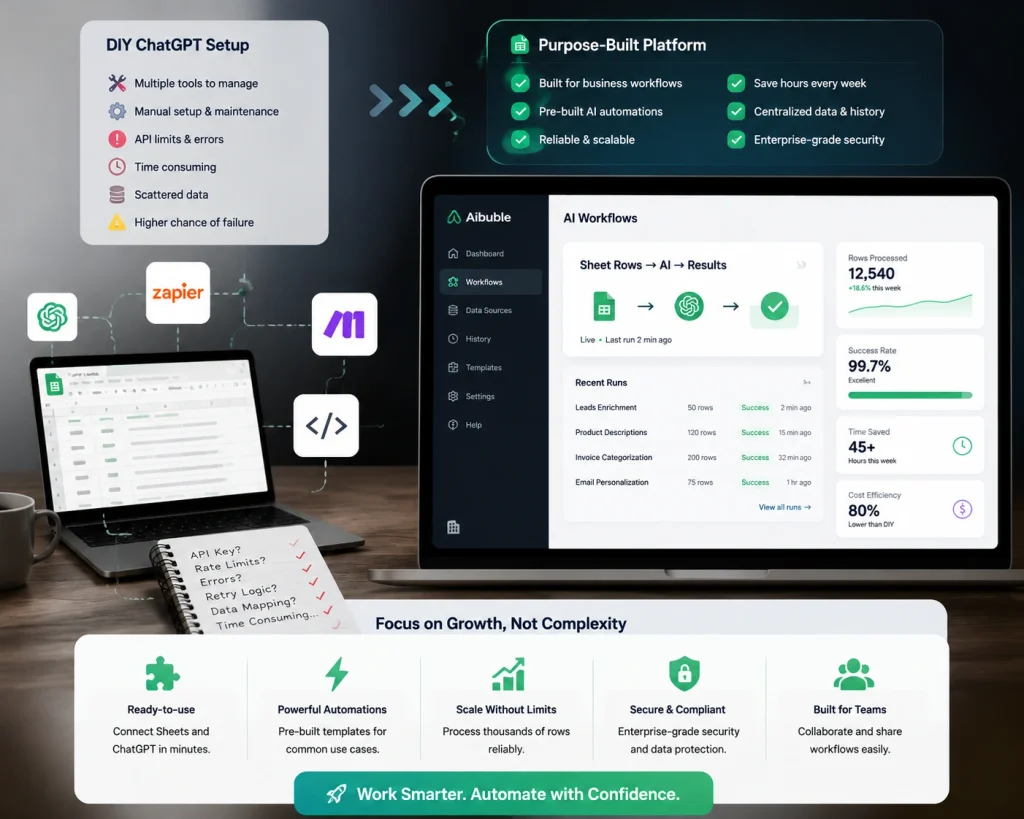
How Aibuble handles document and data processing out of the box
Aibuble is built specifically for business teams who need AI to process documents, forms, and structured data without assembling a stack of third-party tools. Unlike a ChatGPT-plus-Sheets integration, Aibuble is designed to handle the AI model, the workflow logic, and the data routing in one platform, with no API key management, no custom scripts to maintain, and no per-tool billing spread across multiple accounts. For teams processing invoices, lead records, or support data at scale on a daily basis, that kind of consolidated setup can represent a meaningful operational difference. Reach out to the Aibuble team for a walkthrough to see how it compares to your current configuration.
Choosing the right path for your workflow
The three integration methods each have a clear home. The GPT for Sheets add-on is the fastest starting point for occasional enrichment jobs, install it, paste a key, and run a test column to gauge performance for your sheet size. Zapier or Make fits ongoing pipelines where new rows arrive continuously and you want automation to run without touching a script. Google Apps Script with proper batching and retry logic is the answer for production-grade bulk runs that process thousands of rows in a single controlled execution.
If you need to know how to connect ChatGPT to Google Sheets for bulk data entry, the right choice isn’t the cleverest one, it’s the one that matches your volume, your data arrival pattern, and the amount of maintenance you’re willing to carry. Run bulk enrichment jobs twice a month? The add-on is plenty. Need a daily pipeline that runs without babysitting? Apps Script with batching delivers that reliability. And if you’d rather skip the configuration entirely and have AI handle your document and data workflows as a complete system, Aibuble is worth a closer look. The goal is to stop doing by hand what a machine can do in seconds.