
Automatically syncing AI meeting transcripts with a Notion database gives you one organized place for meeting recordings, searchable transcripts, summaries, decisions, and follow-up tasks. Instead of manually copying notes after every Zoom, Google Meet, or Microsoft Teams call, you can use an AI meeting assistant and automation tool to create a structured Notion record as soon as the transcript is ready.
This beginner-friendly guide explains how the workflow works, the best tools to use, how to set up your Notion database, and how to avoid common issues such as duplicate meeting notes.
Quick Answer: Can AI Meeting Transcripts Sync to Notion?
Yes. You can automatically sync AI meeting transcripts to a Notion database by connecting an AI meeting transcription tool—such as Fireflies.ai, Fathom, Otter, Notta, MeetGeek, or Notion AI Meeting Notes—to Notion directly or through an automation platform such as Zapier, Make, or n8n.
The workflow usually follows this simple path:
textOnline meeting
→ AI transcription tool records and transcribes it
→ AI generates a summary and action items
→ Automation creates or updates a Notion database page
→ Your team reviews tasks, decisions, and the full transcript
Notion AI itself can transcribe meetings and identify important points and action items. External AI transcription tools can also connect meeting platforms with Notion, giving teams more flexibility over where meetings are recorded and how notes are structured.notion+1
Why Sync AI Meeting Notes to Notion?
Meetings create useful information, but that information is often buried in recordings, inboxes, chat messages, or separate transcription apps. When notes remain scattered, teams lose context and follow-up work gets missed.
Syncing AI-generated meeting transcripts directly with a Notion database solves this problem by turning every meeting into a searchable, connected record.
For example, a marketing team can link a client strategy call to its campaign page, attach the recording, document the decisions made, and create tasks for the people responsible for the next steps. Months later, anyone can open the Notion database and understand what was discussed without searching through emails or watching an hour-long recording.
Main benefits
- Save time after meetings: The transcript, summary, and notes appear in Notion without manual copying and pasting.
- Create a searchable knowledge base: Team members can search older discussions, decisions, client feedback, and project updates.
- Improve accountability: AI can identify action items, mentioned owners, and possible deadlines.
- Keep projects connected: Link meetings to Notion projects, clients, campaigns, product roadmaps, or content calendars.
- Standardize documentation: Every meeting follows a consistent format, even when different people host calls.
- Reduce missed follow-ups: Important commitments do not disappear inside long recordings or chat threads.
Notion AI Meeting Notes is designed to turn live meeting audio into a transcript and highlight key points and action items. Third-party meeting assistants add more options, including integrations across popular video-conferencing tools and workspaces.notion+1
Tools You Can Use
The best tool stack depends on whether you want a simple no-code setup, a native Notion experience, or a fully customizable system.
| Tool | Best for | What it does |
|---|---|---|
| Notion AI Meeting Notes | Teams already working in Notion | Records/transcribes meetings inside Notion and identifies key points and actions |
| Fireflies.ai | Sales, client, and internal calls | Records, transcribes, summarizes meetings, and supports Notion integration |
| Fathom | Individual professionals and client-facing teams | Captures calls, highlights key moments, and provides AI summaries |
| Otter.ai | Live notes and multi-speaker transcription | Generates searchable transcripts, summaries, and meeting notes |
| Notta | Multilingual meetings and uploaded recordings | Transcribes live calls or uploaded media and supports common meeting platforms |
| MeetGeek | Automated summaries and post-meeting workflows | Produces meeting summaries, highlights, and Notion-connected workflows |
| Zapier | Beginner-friendly automation | Connects apps using visual trigger-and-action workflows |
| Make | More advanced no-code automation | Enables detailed multi-step scenarios, filters, branching, and mapping |
| n8n | Technical teams and self-hosted workflows | Supports customizable automations, webhooks, APIs, and logic |
| Notion API | Developers building custom workflows | Creates and updates Notion pages and database records programmatically |
Fireflies.ai, for example, promotes integrations with Notion and other collaboration platforms, while MeetGeek describes syncing meeting summaries and highlights with Notion. Notta supports transcription across meeting platforms such as Zoom and Google Meet, making it a possible source for a Notion-based workflow.unite+2
Best beginner setup
For most beginners in the United States, a practical starting stack is:
textGoogle Meet or Zoom
+ Fireflies.ai, Fathom, or Notta
+ Zapier or Make
+ Notion Meetings Database
This setup avoids coding while still allowing you to save meeting transcripts, AI summaries, recording links, and action items in one central workspace.
How the Automation Works
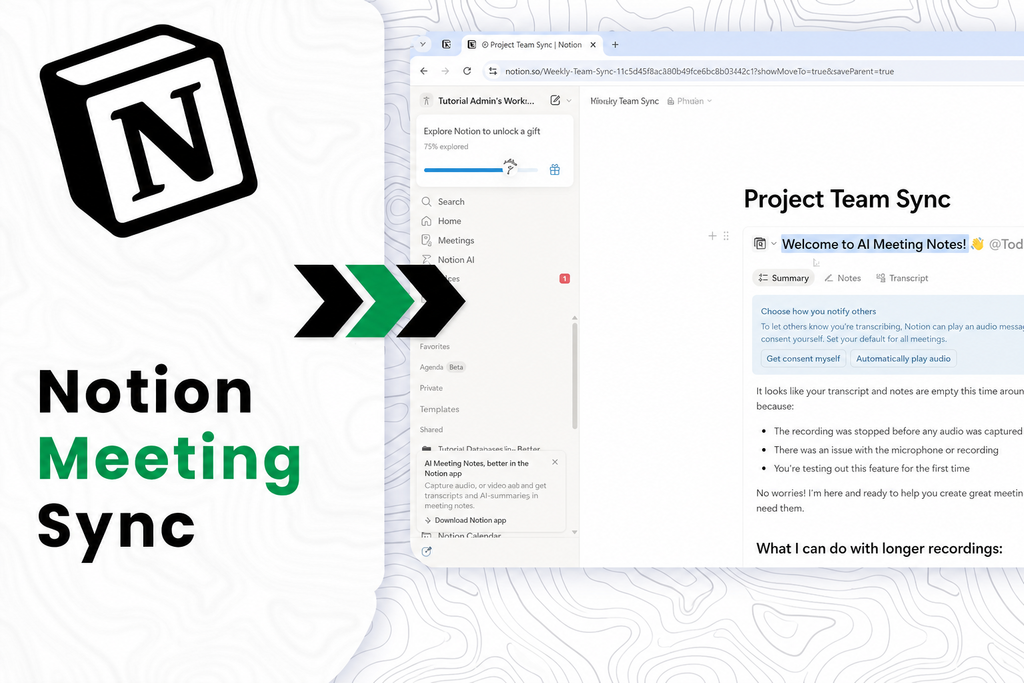
The automated process has four main stages.
1. Record and transcribe the meeting
First, an AI meeting assistant joins or monitors your Zoom, Google Meet, Microsoft Teams, Webex, or in-person meeting. It captures the audio and generates a text transcript.
Depending on the tool, it may identify speakers, add timestamps, create a recording link, and produce an initial AI summary.
2. Wait until the transcript is complete
Your automation should begin only when the transcript is fully processed. Avoid triggering the workflow when a meeting starts or when a recording is still uploading.
Use a trigger such as:
- New transcript available
- New completed recording
- Meeting summary ready
- Transcript processing completed
- New webhook from the transcription platform
This prevents incomplete Notion pages and avoids saving a blank or partial transcript.
3. Use AI to organize the content
A raw transcript is useful, but most teams do not want to read thousands of words after every call. Add an AI step that extracts the information that matters.
Ask the AI to identify:
- A short executive summary
- Main discussion points
- Decisions made
- Action items
- Task owners, only when explicitly named
- Due dates, only when explicitly mentioned
- Risks, blockers, or open questions
- Suggested follow-up meeting topics
Notion’s native AI Meeting Notes feature similarly focuses on transcription, key points, and action items, which reflects what teams usually need from an automated meeting record.notion+1
4. Create or update the Notion database page
Finally, the automation writes the information into Notion.
Notion databases contain structured data sources, while each database item is a page that can hold detailed content. This makes a database a good place for meeting-level information—such as meeting date, participants, status, and project—while the page body holds the complete transcript and expanded notes.
A basic page structure could look like this:
textMeeting title: Weekly Content Strategy Meeting
Date: August 31, 2026
Project: AI Content Hub

Summary
[AI-generated summary]

Key Decisions
[Important decisions]

Action Items
[Tasks, owners, and deadlines]

Recording
[Meeting recording link]

Full Transcript
[Complete transcript]
Set Up Your Notion Database
Create a new full-page Notion database called AI Meeting Transcripts, Meeting Notes Hub, or Meeting Archive. The exact name does not matter; the structure does.
Recommended Notion properties
| Property | Type | Why it matters |
|---|---|---|
| Meeting Name | Title | Helps users identify the meeting quickly |
| Date | Date | Lets you sort and filter meetings chronologically |
| Meeting Type | Select | Separate client calls, standups, interviews, planning sessions, and retrospectives |
| Project | Relation | Links the meeting to a project database |
| Client or Company | Relation or Text | Connects client-facing calls to the relevant account |
| Participants | People or Multi-select | Shows who attended |
| Summary | Text | Stores the short AI-generated meeting summary |
| Decisions | Text | Captures decisions that need future reference |
| Status | Select | Use values such as New, Needs Review, Complete, or Archived |
| Recording URL | URL | Provides a direct recording link |
| Transcript Source | Select | Identifies the transcription tool used |
| External Transcript ID | Text | Helps prevent duplicate meeting records |
| Review Status | Select | Shows whether a human has checked the AI output |
The External Transcript ID field is particularly important. Store the unique meeting ID, recording ID, or transcript ID from the source tool. Before creating a new page, your automation can search Notion for that ID.
If the ID already exists, the workflow updates the existing record instead of creating a duplicate.
Step-by-Step: Sync AI Transcripts to Notion
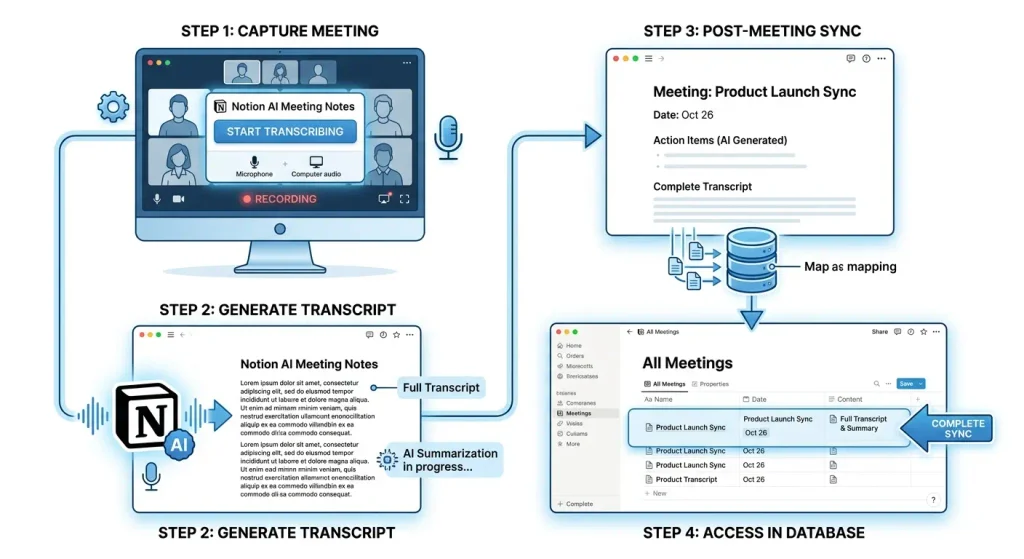
Step 1: Choose a meeting transcription tool
Start by choosing the tool that will generate your transcript.
If you mostly attend Zoom or Google Meet calls, choose a tool that can automatically join meetings or process recordings after the call ends. Notta is one example of an AI transcription platform that can connect with Zoom or Google Meet for live meeting transcription.
For a Notion-first workflow, consider using Notion AI Meeting Notes. It can turn meeting audio into a transcript and surface key points and action items inside your Notion workspace.
Step 2: Create the Notion database
Build the database using the properties listed above. Start with a small number of fields, then add more as your team’s workflow becomes clearer.
At minimum, include:
- Meeting Name
- Date
- Summary
- Action Items
- Recording URL
- Transcript Source
- External Transcript ID
- Status
Step 3: Connect the apps
Connect your transcription tool to Notion directly if it supports the integration.
If there is no direct connection, use an automation platform:
- Use Zapier for a simple, visual trigger-and-action workflow.
- Use Make when you need filters, multiple steps, detailed field mapping, or more control.
- Use n8n if you are comfortable with APIs, webhooks, self-hosting, and custom logic.
When you connect Notion, share the target database with the integration. An integration cannot write to a database that it has not been given access to.
Step 4: Set the trigger
Choose a trigger such as:
textWhen a new meeting transcript is readyAvoid triggers such as:
textWhen a calendar event startsor:
textWhen a meeting is scheduledThe transcript must exist before the automation can send it to Notion.
Step 5: Add the AI summary prompt
Use an AI step to transform the transcript into structured notes.
Here is a ready-to-use prompt:
textYou are an accurate meeting-notes assistant.

Analyze the transcript below and write structured notes using these headings:

1. Summary: 3 to 5 concise bullet points.
2. Key discussion points.
3. Decisions made.
4. Action items in this format:
   - Task:
   - Owner:
   - Due date:
   - Priority:
5. Open questions, blockers, or risks.

Important rules:
- Do not invent names, deadlines, commitments, or decisions.
- If an owner or due date was not explicitly stated, write “Not specified.”
- Keep the language clear, neutral, and concise.
- Preserve important numbers, dates, product names, and project names exactly as mentioned.

Transcript:
{{Meeting Transcript}}
This prompt helps reduce a common problem with AI meeting notes: an AI model may sound confident even when a person never explicitly accepted a task or deadline.
Step 6: Map fields into Notion
Use your automation tool’s field mapper to send short, structured information to database properties.
| Data from the meeting tool | Notion field |
|---|---|
| Meeting title | Meeting Name |
| Meeting date and time | Date |
| Platform name | Transcript Source |
| Recording link | Recording URL |
| Transcript or recording ID | External Transcript ID |
| AI summary | Summary |
| Meeting status | Status |
| Full transcript | Notion page body |
| Decisions and task details | Page body or separate properties |
Keep the page properties short and easy to scan. Put the complete transcript, expanded discussion notes, and long task lists inside the page body.
Step 7: Test with one real meeting
Run one test meeting before turning the workflow on for your entire team.
Check:
- Is the meeting title correct?
- Is the date in the right time zone?
- Does the recording link work?
- Does the transcript arrive completely?
- Are the AI summary and action items accurate?
- Can the automation find and update an existing record?
- Is the Notion database still easy to browse?
Testing is especially important for US-based teams that work across time zones. A meeting at 2:00 PM Eastern Time can appear at 11:00 AM Pacific Time, so confirm that your automation preserves the correct date and time.
How to Prevent Duplicate Meeting Notes
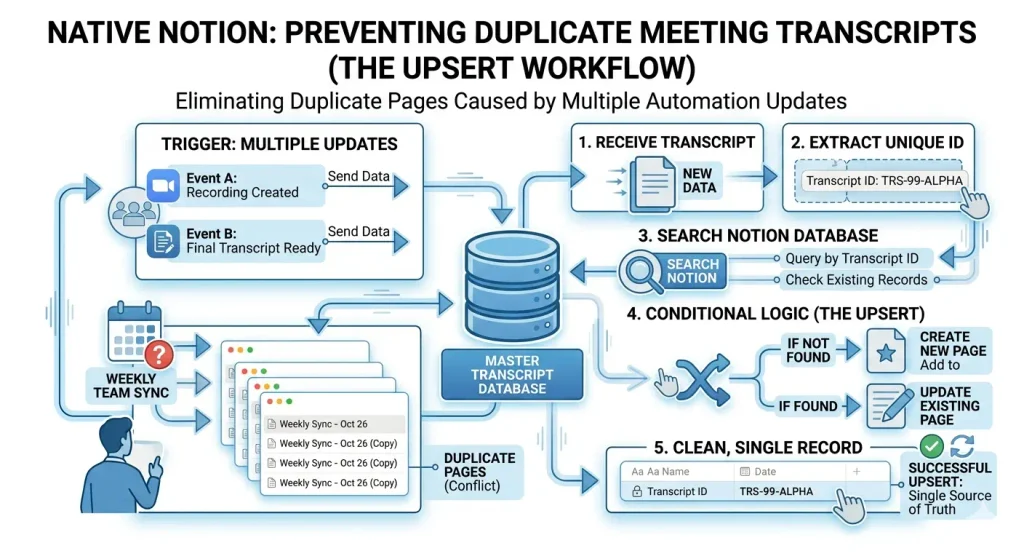
Duplicate transcript pages are a common automation problem. They often happen when the meeting platform sends multiple updates—for example, one when a recording is created and another when the final transcript becomes available.
Use this logic:
textReceive a completed transcript
→ Read the transcript ID
→ Search Notion for that ID
→ If no result is found, create a new page
→ If a result is found, update that page
This is known as an upsert workflow: update when a matching record exists, otherwise insert a new one.
A unique transcript ID is more reliable than using only the meeting title because different meetings can have the same name, especially recurring calls such as “Weekly Team Sync.”
Turn Meeting Notes Into Tasks
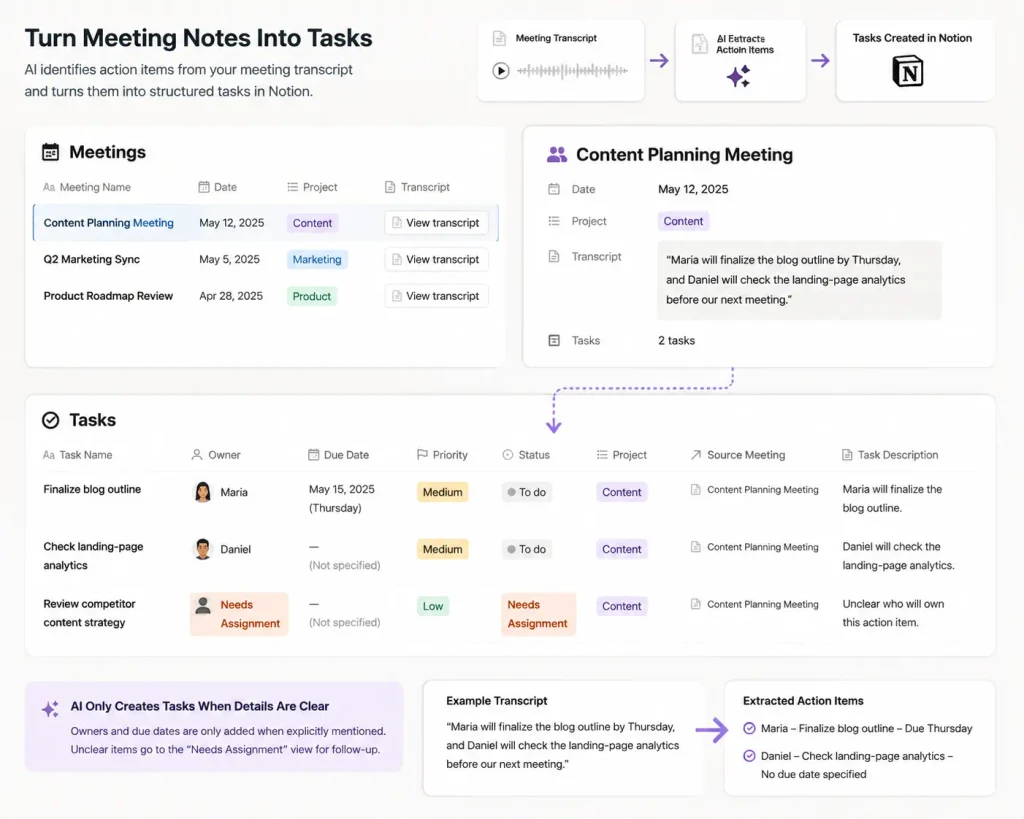
Saving notes is useful, but action items are where the automation becomes valuable.
Create a second Notion database named Tasks and connect it to your Meetings database with a Relation property.
Your Tasks database could include:
- Task Name
- Owner
- Due Date
- Priority
- Status
- Project
- Source Meeting
- Task Description
When AI detects an action item, the automation can create a task page and link it to the original meeting.
For example, if someone says:
“Maria will finalize the blog outline by Thursday, and Daniel will check the landing-page analytics before our next meeting.”
Your workflow could create:
| Task | Owner | Due date | Source |
|---|---|---|---|
| Finalize blog outline | Maria | Thursday, if the exact date is clear | Content Planning Meeting |
| Check landing-page analytics | Daniel | Not specified | Content Planning Meeting |
Only create an owner or deadline when it was actually mentioned. If the transcript is unclear, send the task to a “Needs Assignment” view instead of guessing.
Best Practices for Reliable Meeting Automation
Keep the full transcript
Always preserve the full transcript in the Notion page. A short summary is convenient, but the transcript is the source material when someone needs to confirm context or verify what was said.
Require human review
AI meeting summaries are helpful drafts, not official records by default. Ask the meeting owner to review decisions, customer commitments, legal discussions, and task assignments before marking the page as complete.
Use consistent templates
Create a standard Notion template with these sections:
textSummary
Key Decisions
Action Items
Open Questions
Recording
Full Transcript
Consistency makes pages easier to read and improves the quality of your internal knowledge base.
Protect sensitive conversations
Use restricted Notion databases or separate workspaces for confidential meetings, including hiring interviews, financial planning, employee performance discussions, legal matters, and private client conversations.
Get recording consent
Tell participants when a meeting is being recorded and transcribed. Consent, workplace requirements, client agreements, and recording laws can differ across US states and organizations. For sensitive conversations, follow your company’s legal and privacy policies.
Do not automate every short call
Exclude test meetings, accidental recordings, extremely short calls, and low-value internal conversations. A cleaner database is more useful than a large collection of irrelevant transcripts.
Final Thoughts
Automatically syncing AI meeting transcripts with Notion databases can turn routine calls into a useful operational system. Rather than leaving important discussions inside video recordings or separate transcription tools, you create a searchable workspace that connects meetings, projects, people, client accounts, decisions, and tasks.
Start small: choose one transcription tool, build one Meetings database, use a clear AI summary prompt, and test the workflow with a single recurring meeting. Once it is accurate, expand the system to client calls, sales meetings, product discussions, content planning, software sprints, team standups, and research interviews.
The goal is not to store more meeting notes. The goal is to make the information from meetings easier to find, understand, and turn into responsible next steps.