
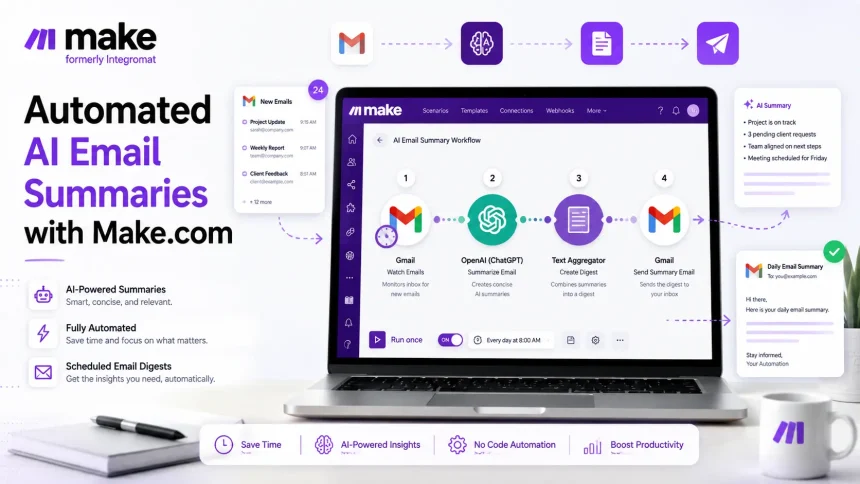
This step-by-step guide to sending automated AI email summaries using Make.com walks you through building a workflow that connects to Gmail, runs your emails through an AI model, and delivers a clean digest to your inbox on a schedule you control. By the end, you’ll have a working, testable scenario you can deploy today. You’ll also see how platforms like Aibuble solve this same challenge natively, for teams who’d rather skip the pipeline and go straight to results.
Before jumping into the build, understand what you’re actually constructing: a scheduled Make.com scenario that fetches new emails, strips them down to clean text, runs them through OpenAI, aggregates all the summaries, and fires off one tidy digest email. Each section below covers one piece of that chain, in order, with the specific settings that make it reliable in production.
What you need before you build anything
Accounts, credentials, and API keys
To get started, you’ll need a Make.com account (the free tier may be sufficient for initial testing, check Make.com’s current quotas to confirm), a Gmail account (personal or Google Workspace both work), and an OpenAI API key. Grab your OpenAI key from the OpenAI platform dashboard under API Keys. Before you run a single scenario, set a monthly spend limit in your OpenAI account settings. GPT-4o-mini costs $0.00015 per 1,000 input tokens and $0.00060 per 1,000 output tokens, which makes email summarization extremely affordable, but an uncapped key connected to a looping scenario can surprise you.
As a rough heuristic based on common business email lengths, a cleaned plain-text body often runs somewhere in the 500, 800 token range. At GPT-4o-mini rates, that works out to fractions of a cent per email. Set your spend cap regardless and thank yourself later.
What the finished workflow looks like
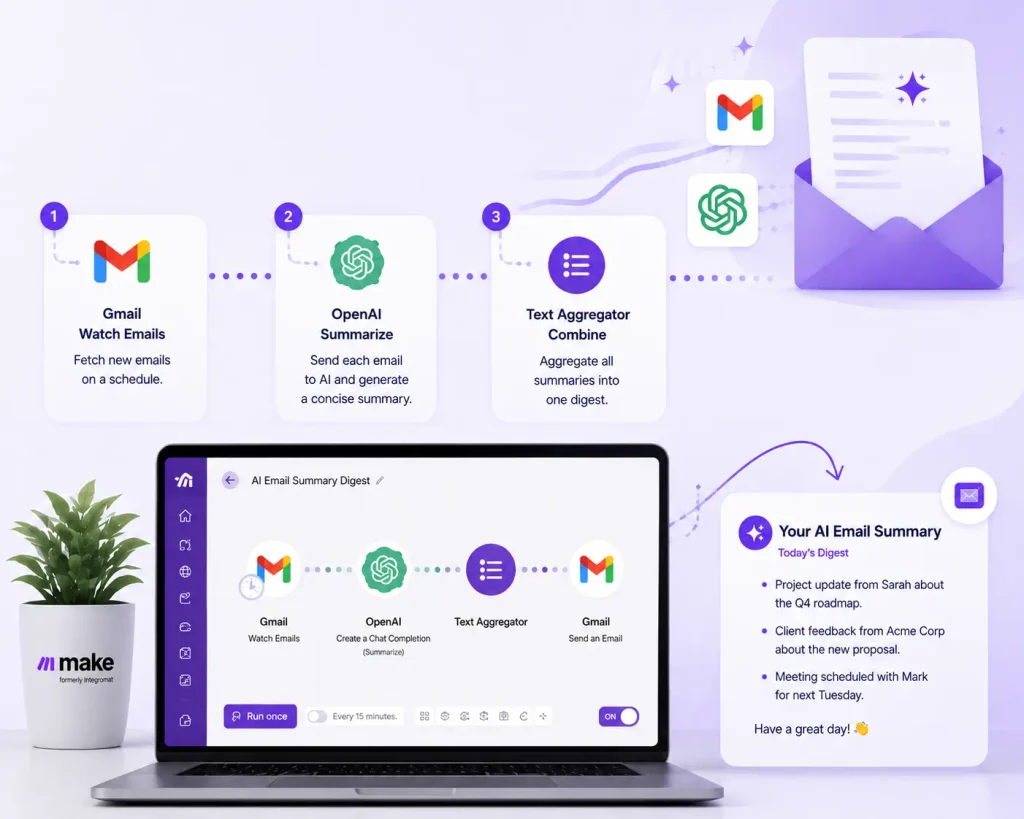
Before the workflow: emails pile up, context gets lost, and decisions get delayed. After: a scheduled Make.com scenario runs on your chosen cadence, fetches new emails from Gmail, cleans the bodies, passes each one to OpenAI, aggregates all the summaries, and sends one formatted digest to your inbox. The three core Make.com modules you’ll configure are a Gmail Watch Emails trigger, an OpenAI Create a Chat Completion module, and a Gmail Send an Email module. A Text Aggregator sits between the AI module and the send module to bundle everything into one email instead of flooding your inbox with individual messages.
Step-by-step guide to sending automated AI email summaries using Make.com
Connecting Gmail and setting up your email trigger
Open Google Cloud Console, create or select a project, and enable the Gmail API. Configure the OAuth consent screen and add make.com and integromat.com as authorized domains. Create OAuth client credentials (Desktop app or Web application type), then copy the Client ID and Client Secret. Back in Make.com, add a Gmail module to a new scenario, click Create a connection, open Advanced settings, paste both credentials, and click Sign in with Google. Google will show an unverified-app warning during this step. That’s expected for custom OAuth setups, click through and approve access for the Gmail account you want Make to read from.
For the Gmail scope, use https://www.googleapis.com/auth/gmail.modify if your scenario needs to both read and send. This scope covers reading messages, composing, and sending without requiring full admin access.
Set the trigger to watch a specific label or your primary inbox. During testing, start with a small batch of emails per run, single digits works well. This keeps your OpenAI costs predictable and makes debugging much easier when something goes wrong. Use the “since” field to set a start date so Make.com ignores emails that arrived before you activated the scenario. Once everything works reliably, you can raise the batch size to match your actual volume.
Add a Make.com Filter between the Gmail trigger and the next module. Filter by sender domain, subject keywords, or label to ensure only relevant emails enter the AI pipeline. Promotional emails, automated notifications, and newsletter blasts add token cost without adding value to your digest. A simple filter that excludes emails from known marketing domains or subjects containing “unsubscribe” will cut your token usage significantly on busy days.
Make.com setup for automated AI email summaries: cleaning content before it reaches the AI
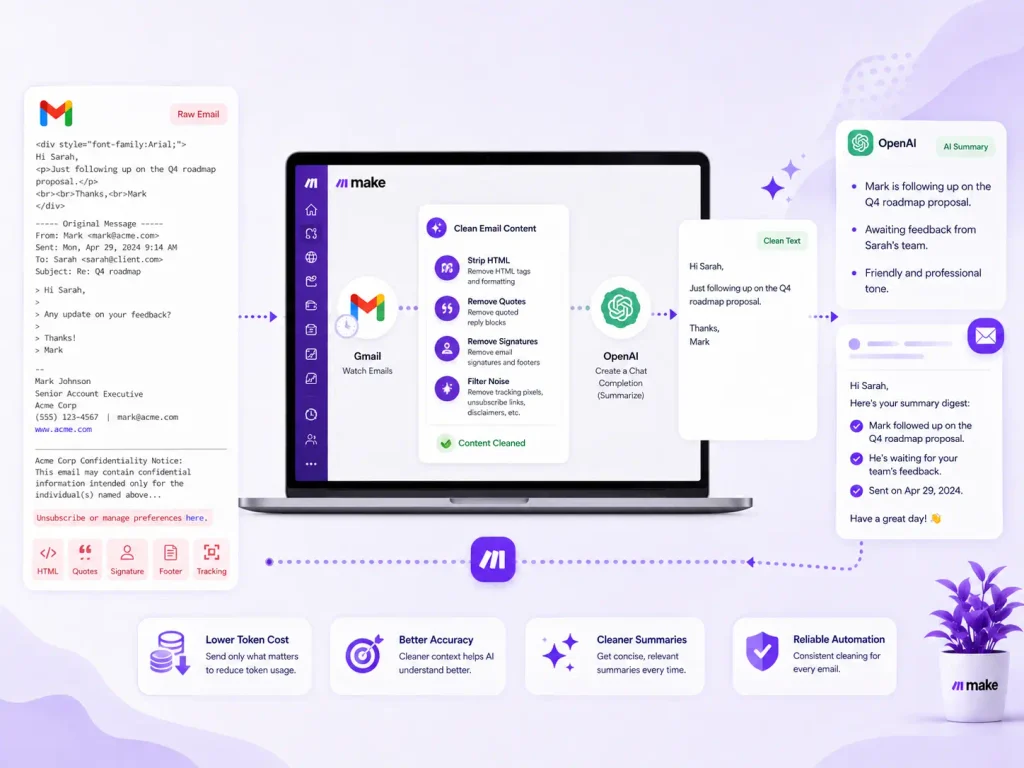
Why raw HTML emails break summarization
Most emails arrive as HTML with tracking pixels, layout tables, unsubscribe footers, and quoted reply threads baked in. Sending that raw payload to an AI model burns tokens on noise and produces a muddled, unreliable summary. The fix isn’t complicated, but skipping it will cost you both accuracy and money at scale.
Stripping quoted replies, signatures, and HTML markup
Use Make.com’s built-in stripHTML() function to convert the HTML body to plain text. Then apply replace() with a regex to remove Gmail’s quoted reply blocks. A practical Make expression for this is: replace(body; "/\s+On[\w\W]+?wrote:[\w\W]+/"; ""). This pattern matches the “On [date] wrote:” separator and removes everything after it, which covers the quoted thread in most standard Gmail replies. Also strip common forwarded-message headers like “From: / Sent: / To: / Subject:” blocks, which add structure noise without adding information. Process only the latest message in a thread unless you specifically want a thread-level summary.
What to pass to the AI module and what to skip
Pass the cleaned plain-text body and the subject line only. Skip attachments unless your workflow handles them as separate inputs with dedicated extraction steps. As a practical guideline, capping the body at around 3,000, 4,000 characters covers most standard business emails and keeps per-run costs consistent, though emails that run significantly longer, like forwarded documents or lengthy newsletters, warrant separate handling rather than a standard summarization prompt.
Generating the summary with the OpenAI module
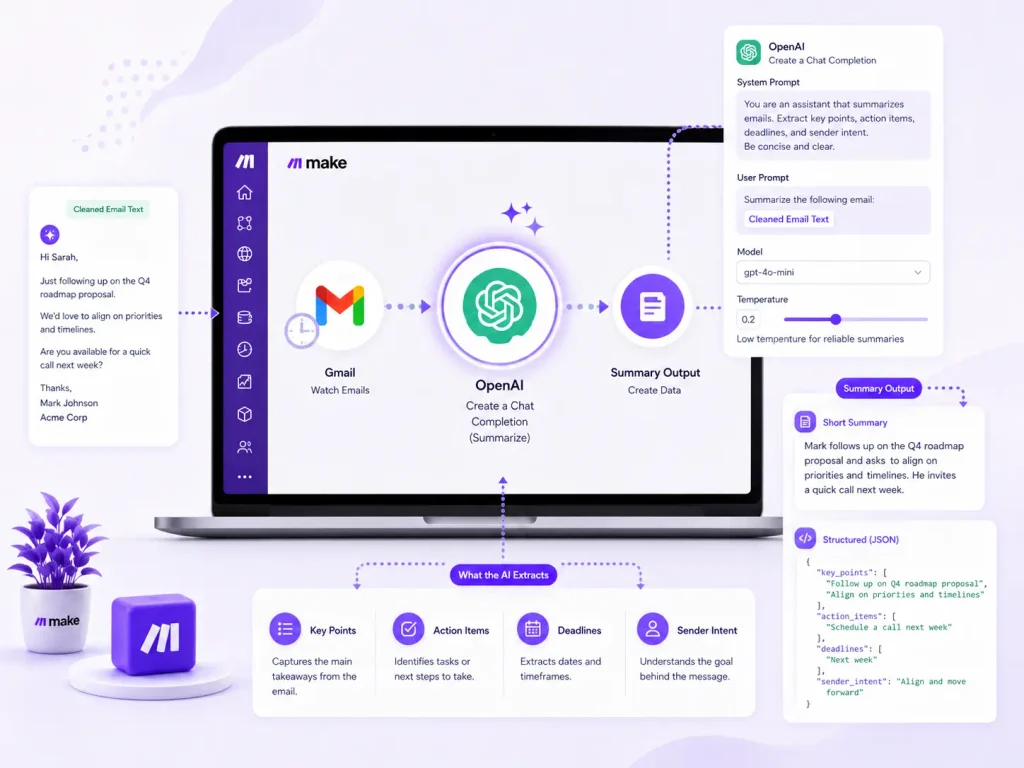
Adding and configuring the OpenAI module
Add the OpenAI “Create a Chat Completion” module, connect it with your API key, and select your model. GPT-4o-mini handles most business email summarization well and keeps costs minimal. GPT-4o is worth the extra cost for complex, high-stakes communications where nuance matters. Map the cleaned email body into the messages array with the role field set to “user.” Add a separate “system” role message above it for your instruction prompt.
Prompt templates that produce consistent output
Use one of these two prompts depending on your use case. For a simple daily digest, the concise summary prompt works best:
- System: “You summarize business emails clearly and concisely. Extract the key point, any required action, deadlines, and sender names. Do not add information not present in the email.”
- User: the cleaned email body
- Constraint added to the user message: “Respond in 2 sentences maximum.”
For workflows that feed summaries into a ticketing system, CRM, or routing logic, the structured JSON prompt is more reliable:
- System: “You extract structured data from business emails. Return only valid JSON.”
- User fields to request:
summary(1-2 sentences),action_items(array),deadline(string or null),sender_intent(question/request/update/other)
The JSON version works better for multi-email digest scenarios where you want to sort or filter summaries before aggregating them. The plain-text version is faster to set up and easier to read in a straightforward digest email.
Temperature and format settings for reliable results
Use a low temperature (e.g., 0.0, 0.3) for summarization tasks. Lower temperatures produce stable, predictable output that downstream modules can parse reliably. Avoid 0.7 or higher for this use case, it introduces unnecessary variation in length, tone, and format that makes the digest feel inconsistent. Setting max_tokens in the 200, 300 range is a reasonable starting point for simple summaries, though your ideal value will depend on desired summary length and your token budget. Adjust as needed after reviewing a few test runs.
Sending the digest and keeping the workflow stable
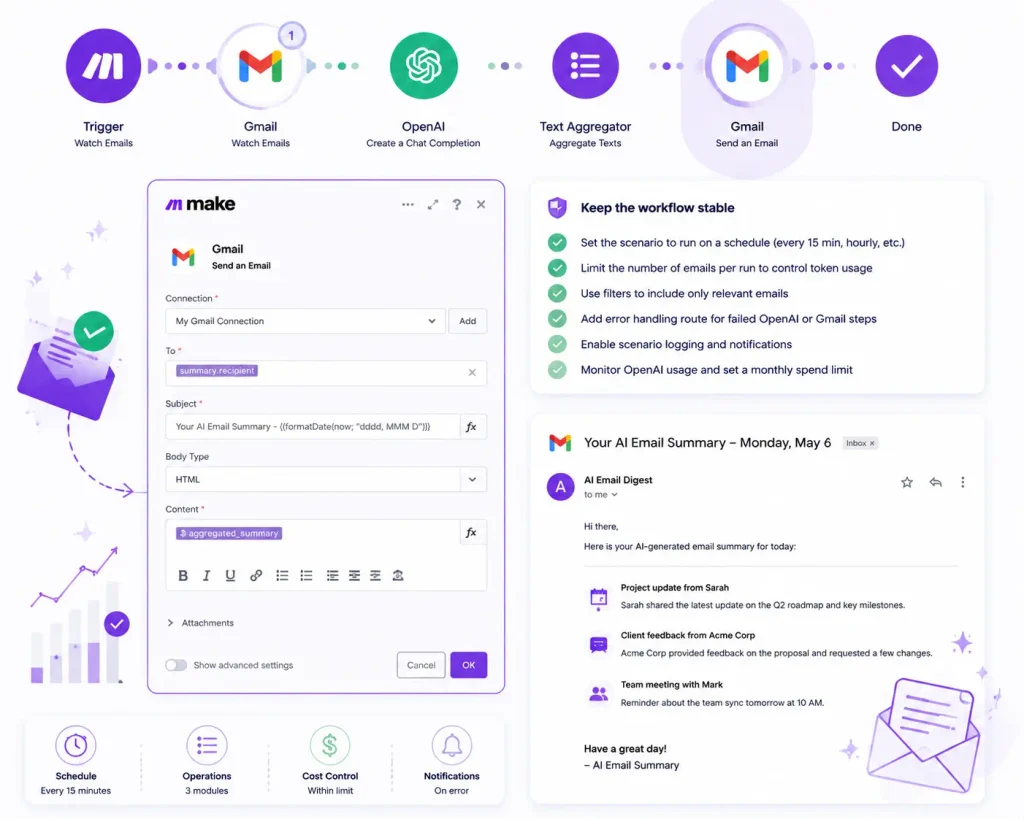
Aggregating multiple summaries into one email
Add Make.com’s Text Aggregator module after the OpenAI module. Set the Source Module to the Gmail trigger so the aggregator knows which bundles to collect. Map each summary with a separator that includes the email subject line, the summary text, and a line break. The aggregator processes every bundle from the scenario run, concatenates the text in order, and outputs a single bundle with the complete digest body. This is what makes the workflow a true digest rather than a flood of individual summary emails.
Configuring the Gmail send module
Add a Gmail “Send an Email” module after the Text Aggregator. Set the recipient, subject line (include the date or time range of the digest so it’s easy to search later), and map the aggregated text into the body field. Schedule the scenario to run once per hour or once daily using Make.com’s built-in scheduler, not on every email arrival. Triggering on every new email defeats the purpose of a digest and multiplies your API call count unnecessarily.
Error handlers for auth failures, rate limits, and timeouts
Three failure points will hit you eventually if you run this scenario long enough. For auth failures, reconnect the Gmail or OpenAI connection from the Connections panel and verify that your OAuth scopes cover full Gmail access. For OpenAI rate limit errors (HTTP 429), right-click the OpenAI module, add an error handler, set the directive to Resume, add a Sleep module with a 60-second delay, then add a second copy of the OpenAI module. This gives you automatic retry without stopping the scenario. For timeouts, Make.com scenarios cap at 45 minutes per run; if you’re processing too many emails in a single run, reduce the batch size in your trigger settings.
Add an error route to every module that touches an external API. Failed runs should log cleanly to an error-tracking route rather than silently stopping mid-scenario. A scenario that fails silently means you may not notice your digest stopped until you’re three days behind on emails, and by then, the context you needed is buried.
When you’d rather skip the pipeline entirely
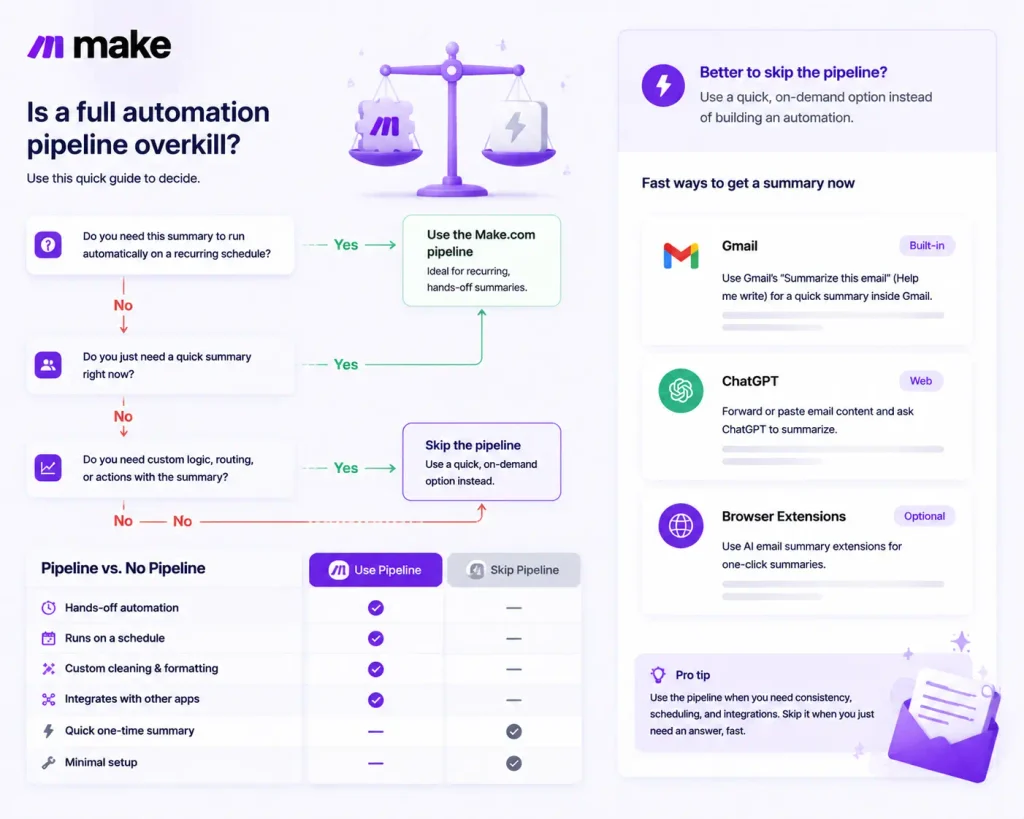
Building this workflow in Make.com is genuinely powerful, and for developers or solo builders who enjoy owning their stack, it’s a great setup. But it carries real ongoing overhead. You’ll spend time managing OAuth tokens, monitoring run errors, and adjusting prompts when output format drifts. For a customer service team or operations manager who needs email summaries to work reliably every day, that maintenance load adds up fast.
This is where Aibuble is worth a direct look. Aibuble is a no-code AI platform built specifically for teams that need AI-powered text processing, including email summarization, without stitching together trigger modules, prompt engineering, and error handlers across multiple tools. You won’t need to manage separate API keys, configure retry logic, or refresh OAuth tokens manually. Where the Make.com approach requires you to connect Gmail, configure OpenAI, sanitize inputs, aggregate outputs, and build error routes yourself, Aibuble handles the AI text summarization layer as a native workflow action. If your team processes high volumes of email or written content daily, that’s a meaningful comparison worth making before you invest time building from scratch. Reach out to the Aibuble team to see a live demo of how the text processing workflow handles real business emails.
What you’ve built and where to go next
If you followed this step-by-step guide to sending automated AI email summaries using Make.com, you now have a deployable scenario ready to test. You connected Gmail with the right OAuth scopes, filtered out noise before it reached the AI, cleaned HTML bodies down to plain text, generated consistent summaries with a temperature-controlled OpenAI prompt, bundled everything with a Text Aggregator, and wired up error handlers to keep the scenario running when external APIs misbehave. Each of those decisions compounds: the filter keeps token costs low, the low temperature keeps output stable, and the Text Aggregator keeps your inbox clean.
Two paths forward from here. If you want full control over the pipeline, everything above gives you what you need to deploy today. Start with a small batch of emails per run, confirm the output format looks right, then scale the batch size gradually. If you’d rather get the same outcome without managing the stack yourself, explore what Aibuble does natively for AI text processing and customer service automation. Either way, manually reading the same email thread three times before acting on it is no longer on the table.