
Chasing late payments, sorting through crumpled receipts, and building invoices from scratch every month—these tasks eat up hours you could spend on actual paid work. For freelancers, manual invoicing and expense tracking aren’t just annoying; they cost real money and cause tax-season headaches. The good news? AI-powered tools now handle most of this for you. They create invoices, send payment reminders, scan receipts, and sort expenses into the right categories automatically. This guide breaks down the best options, how to use them, and what they cost, so you can pick the right one and get back to work.
Table of Contents
- Why Manual Invoicing Hurts Freelancers
- What AI Invoicing and Expense Tools Actually Do
- Best AI Tools to Automate Invoicing and Expense Categorization
- How to Set Up Your AI Invoicing Tool: Step-by-Step
- Benefits of Automating Invoicing and Expenses
- Common Mistakes to Avoid
- Pricing Overview
- Final Thoughts
Why Manual Invoicing Hurts Freelancers
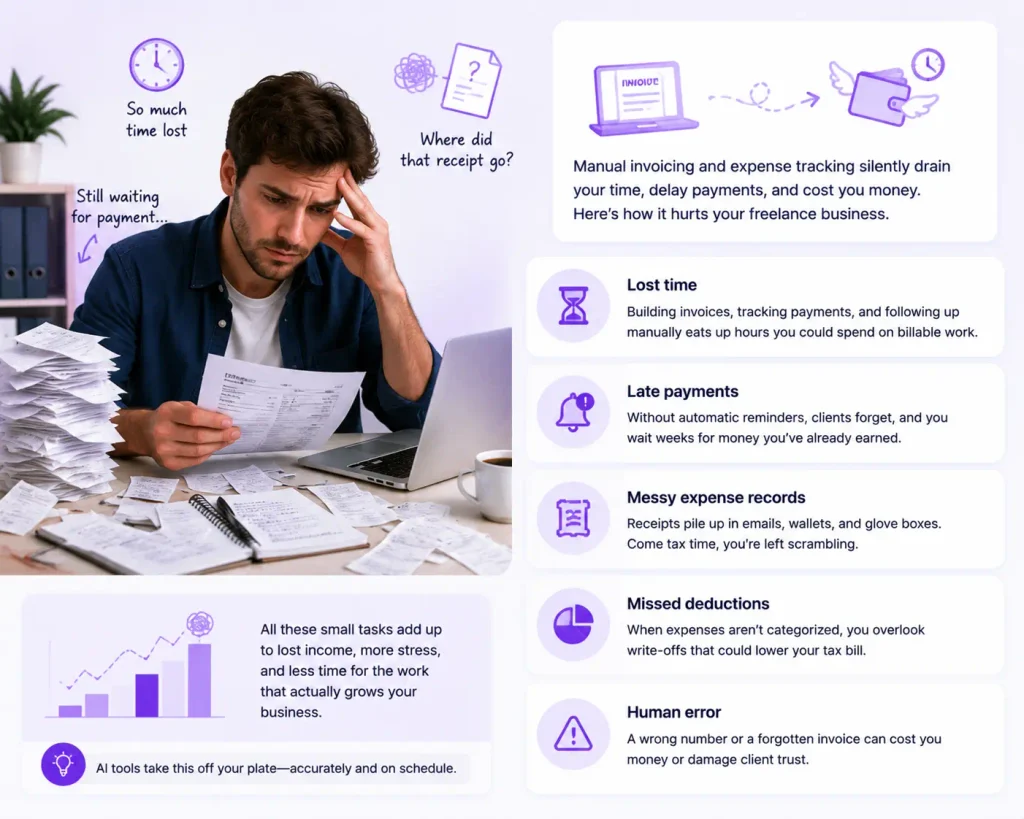
When you work for yourself, every unpaid hour counts. Manual invoicing quietly drains your time and income in ways you might not notice until tax season hits.
Here’s what usually goes wrong:
- Lost time. Building each invoice by hand, then tracking who paid and who didn’t, adds up fast.
- Late payments. Without automatic reminders, clients forget, and you wait weeks for money you earned.
- Messy expense records. Receipts pile up in email, wallets, and glove boxes. Come tax time, you scramble.
- Missed deductions. When expenses aren’t categorized, you overlook write-offs that could lower your tax bill.
- Human error. A wrong number or a forgotten invoice can cost you real cash or trigger client disputes.
AI tools fix these problems by doing the repetitive work for you—accurately and on schedule.
What AI Invoicing and Expense Tools Actually Do
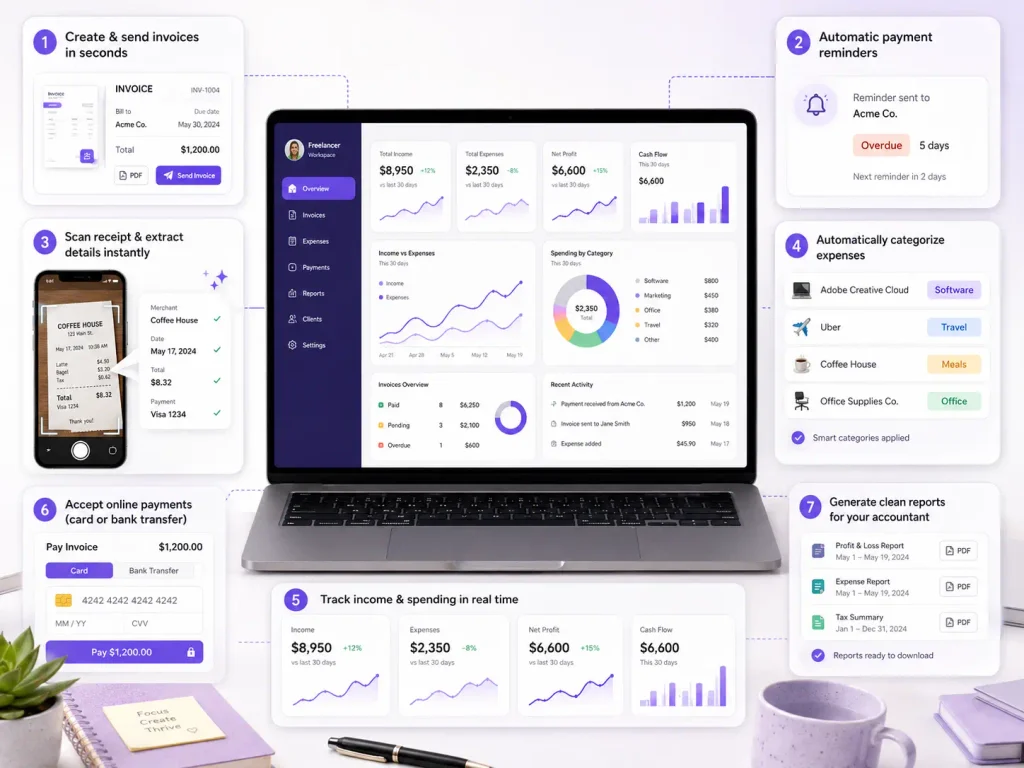
These tools go far beyond basic templates. Modern platforms use AI and automation to handle the boring parts of running your freelance finances.
A good AI tool can:
- Create and send professional invoices in seconds
- Send automatic payment reminders to slow-paying clients
- Scan receipts and pull out the key details
- Sort expenses into the right tax categories on their own
- Track income and spending in real time
- Accept online payments through cards and bank transfers
- Generate reports you can hand straight to your accountant
The result is less admin, faster payments, and cleaner books all year round.
Best AI Tools to Automate Invoicing and Expense Categorization
Each tool below suits a different type of freelancer. Compare their strengths, then match one to your workflow and budget.
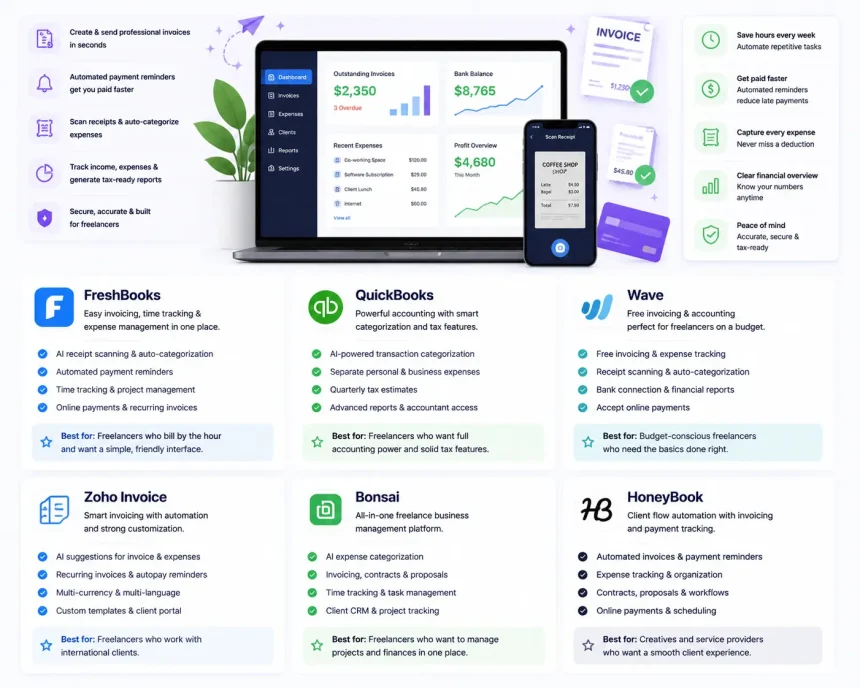
FreshBooks
FreshBooks is built with freelancers and small service businesses in mind. It creates polished invoices, tracks billable hours, and sends automatic late-payment reminders. Its expense tools let you snap a photo of a receipt, and the software pulls the details and files it under the right category.
Best for: Freelancers who bill by the hour and want a simple, friendly interface.
QuickBooks
QuickBooks is one of the most powerful accounting platforms out there. Its self-employed and online plans use smart categorization to sort transactions automatically, separate business from personal spending, and estimate quarterly taxes. If you want deep reporting and easy accountant access, this is a strong pick.
Best for: Freelancers who want full accounting power and solid tax features.
Wave
Wave offers free invoicing and accounting, which makes it a favorite for freelancers just starting out. You can send unlimited invoices, track expenses, and connect your bank account to import transactions. You only pay when you accept online payments or use payroll.
Best for: New freelancers and anyone on a tight budget.
Zoho Invoice
Zoho Invoice is a free invoicing tool that punches above its weight. It handles customizable invoices, time tracking, expense logging, and automatic reminders. As part of the wider Zoho ecosystem, it connects smoothly with other business apps as you grow.
Best for: Freelancers who want a free, feature-rich invoicing tool with room to scale.
Bonsai
Bonsai is an all-in-one platform made specifically for freelancers and agencies. Beyond invoicing and expense tracking, it handles contracts, proposals, and time tracking in one place. Its automation sends invoices, chases payments, and keeps your expenses sorted for tax time.
Best for: Freelancers who want invoicing plus contracts and project management together.
HoneyBook
HoneyBook is a client management platform popular with creative freelancers. It combines invoicing, contracts, scheduling, and payments into one smooth client experience. Automated workflows send invoices and reminders, so you spend less time on follow-ups.
Best for: Creative freelancers and service pros who manage clients end-to-end.
How to Set Up Your AI Invoicing Tool: Step-by-Step
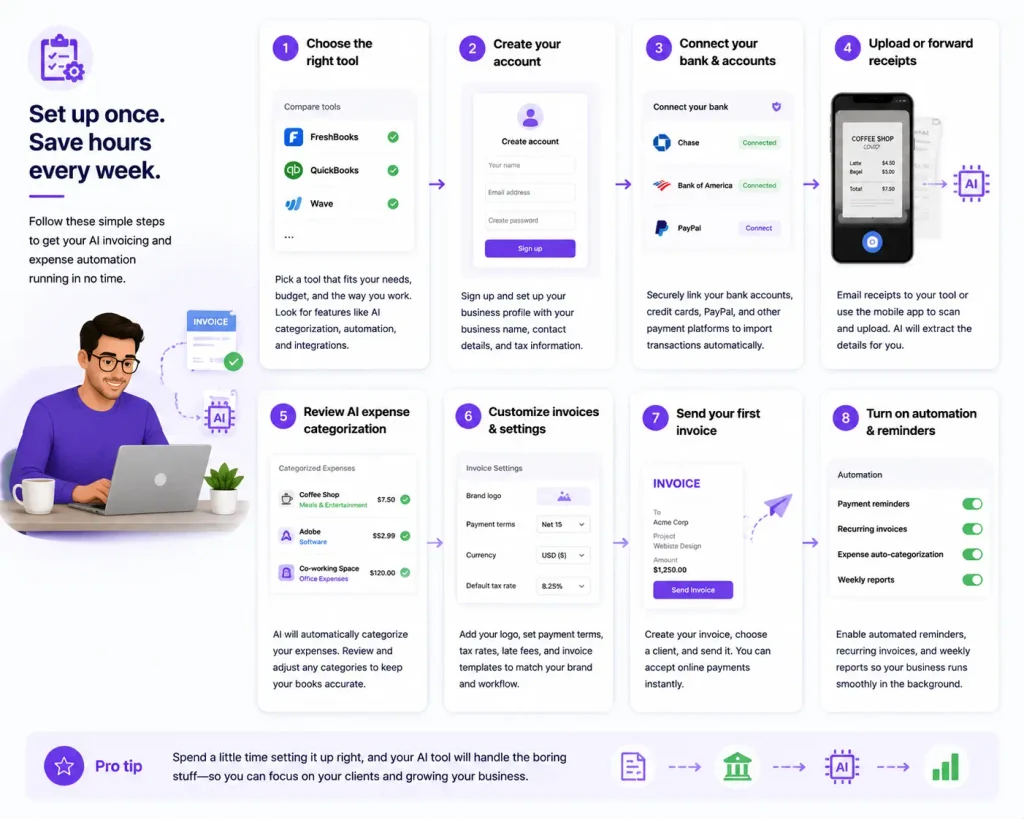
Getting started is quicker than you think. Most tools follow a similar path, so these steps apply no matter which one you pick.
Step 1: Choose the Right Tool
Match a tool to your needs. Think about your budget, how many clients you bill, and whether you need extras like contracts. Start with a free plan or trial to test the fit before you commit.
Step 2: Set Up Your Profile and Branding
Add your business name, logo, and contact details. Set your currency, payment terms, and tax rates. This makes every invoice look professional and consistent.
Step 3: Connect Your Bank and Payment Options
Link your business bank account so the tool can import transactions automatically. Turn on online payment options like credit cards and bank transfers, so clients can pay you in a click.
Step 4: Create Your First Invoice
Use a template to build your first invoice. Add the client, list your services, and set the due date. Save it as a reusable template so future invoices take seconds.
Step 5: Turn On Automatic Reminders
Set up payment reminders that go out before and after the due date. This one step alone can cut down on late payments without a single awkward email from you.
Step 6: Set Up Expense Tracking
Enable receipt scanning and automatic categorization. When you buy something for work, snap a photo or forward the email receipt. The AI files it under the right category for you.
Step 7: Review and Run Reports
Check your dashboard weekly to see income, spending, and unpaid invoices. Run monthly or quarterly reports to stay ready for tax time and to spot trends in your business.
Benefits of Automating Invoicing and Expenses
Once your system is running, the payoff shows up fast. Here’s what you gain:
- Get paid faster. Automatic invoices and reminders shorten the wait for payment.
- Save hours every month. Let software handle the admin while you focus on billable work.
- Fewer errors. Automation cuts out the typos and forgotten invoices that cost you money.
- Easier taxes. Categorized expenses mean you claim every deduction and skip the tax-season panic.
- Clear cash flow. Real-time dashboards show exactly where your money stands.
- A professional image. Clean, branded invoices make you look established and trustworthy.
Common Mistakes to Avoid
Even the best tool won’t help if you use it poorly. Steer clear of these slip-ups:
- Mixing business and personal spending. Keep a separate business account so categorization stays clean.
- Ignoring the reports. The data only helps if you actually check it. Review your dashboard regularly.
- Skipping receipt uploads. If you don’t log receipts, you lose the paper trail for deductions.
- Setting vague payment terms. Spell out due dates and late fees so clients know the rules.
- Overpaying for features you don’t use. Start small and upgrade only when your business truly needs more.
- Forgetting to double-check AI categories. The software is smart, but a quick review keeps your books accurate.
Pricing Overview
Costs range from completely free to a monthly subscription with premium features. Here’s a rough guide:
| Tool | Starting Price | Free Option | Best Feature |
|---|---|---|---|
| FreshBooks | ~$19/month | Free trial | Time tracking + easy invoicing |
| QuickBooks | ~$20/month | Free trial | Tax estimates + smart categorization |
| Wave | Free | Yes | Free invoicing and accounting |
| Zoho Invoice | Free | Yes | Full-featured free invoicing |
| Bonsai | ~$25/month | Free trial | All-in-one freelance suite |
| HoneyBook | ~$19/month | Free trial | Client management + payments |
Prices shift with plans and promotions, so check each tool’s site for current rates. If you’re just starting out, Wave and Zoho Invoice let you automate for free. As your income grows, a paid plan like FreshBooks or Bonsai can save you far more time than it costs.
Final Thoughts
Manual invoicing and messy expense tracking don’t have to be part of freelance life. The right AI tool sends your invoices, chases late payments, scans your receipts, and sorts every expense—all while you focus on work that pays. Whether you want a free starter option or a full financial command center, there’s a fit for you.
Pick one tool from this list, start a free trial or free plan today, and set up your first automated invoice before the week ends. Your future self—and your bank account—will thank you.